

-
 chevron_right
Aryan Kaushik: Create Custom System Call on Linux 6.8
news.movim.eu / PlanetGnome • 28 February, 2025 • 4 minutes

Ever wanted to create a custom system call? Whether it be as an assignment, just for fun or learning more about the kernel, system calls are a cool way to learn more about our system.
Note - crossposted from my article on Medium
Why follow this guide?
There are various guides on this topic, but the problem occurs due to the pace of kernel development. Most guides are now obsolete and throw a bunch of errors, hence I’m writing this post after going through the errors and solving them :)
Set system for kernel compile
On Red Hat / Fedora / Open Suse based systems, you can simply do
Sudo dnf builddep kernel
Sudo dnf install kernel-devel
On Debian / Ubuntu based
sudo apt-get install build-essential vim git cscope libncurses-dev libssl-dev bison flex
Get the kernel
Clone the kernel source tree, we’ll be cloning specifically the 6.8 branch but instructions should work on newer ones as well (till the kernel devs change the process again).
git clone --depth=1 --branch v6.8 https://git.kernel.org/pub/scm/linux/kernel/git/torvalds/linux.git
Ideally, the cloned version should be equal to or higher than your current kernel version.
You can check the current kernel version through the command
uname -r
Create the new syscall
Perform the following
cd linux
make mrproper
mkdir hello
cd hello
touch hello.c
touch Makefile
This will create a folder called “hello” inside the downloaded kernel source code, and create two files in it — hello.c with the syscall code and Makefile with the rules on compiling the same.
Open hello.c in your favourite text editor and put the following code in it
#include <linux/kernel.h>
#include <linux/syscalls.h>
SYSCALL_DEFINE0(hello) {
 pr_info("Hello World\n");
 return 0;
}
It prints “Hello World” in the kernel log.
As per kernel.org docs
"
SYSCALL_DEFINEn()macro rather than explicitly. The ‘n’ indicates the number of arguments to the system call, and the macro takes the system call name followed by the (type, name) pairs for the parameters as arguments.”
As we are just going to print, we use n=0
Now add the following to the Makefile
obj-y := hello.o
Now
cd ..
cd include/linux/
Open the file “syscalls.h” inside this directory, and add
asmlinkage long sys_hello(void)
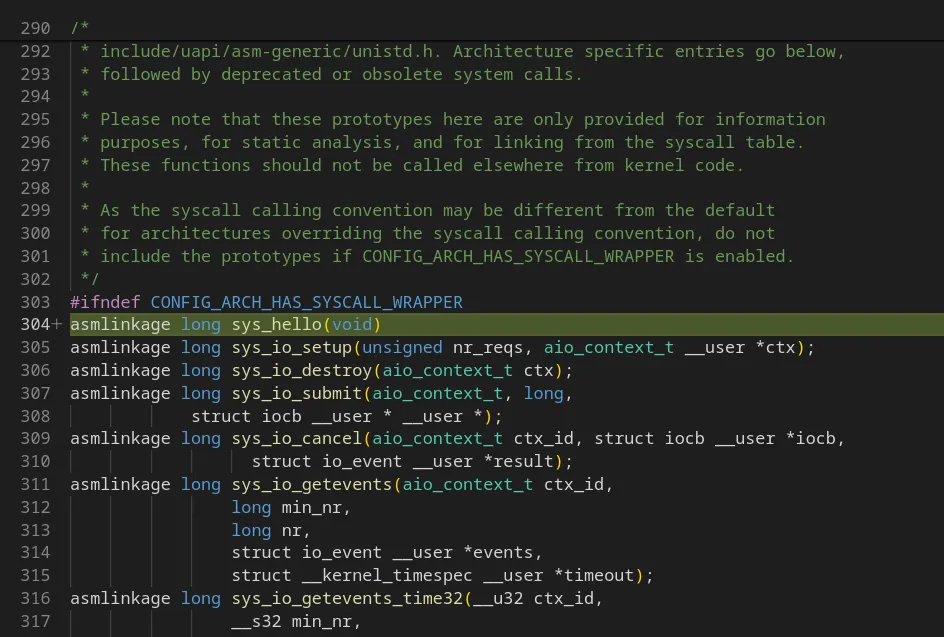
This is a prototype for the syscall function we created earlier.
Open the file “Kbuild” in the kernel root (cd ../..) and to the bottom of it add
obj-y += hello/
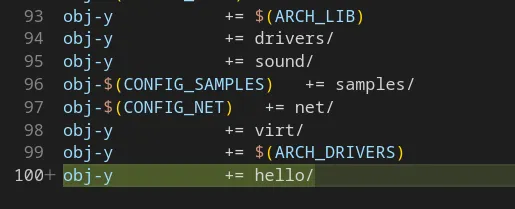
This tells the kernel build system to also compile our newly included folder.
Once done, we then need to also add the syscall entry to the architecture-specific table.
Each CPU architecture could have specific syscalls and we need to let them know for which architecture ours is made.
For x86_64 the file is
arch/x86/entry/syscalls/syscall_64.tbl
Add your syscall entry there, keeping in mind to only use a free number and not use any numbers prohibited in the table comments.
For me 462 was free, so I added the new entry as such
462 common hello sys_hello
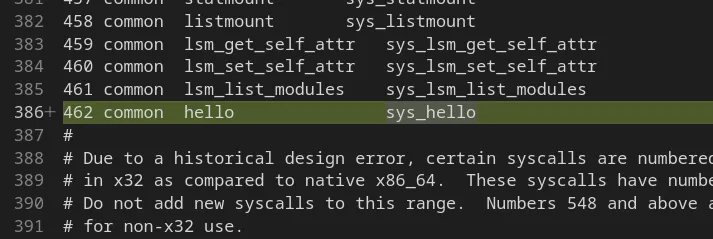
Here 462 is mapped to our syscall which is common for both architectures, our syscall is named hello and its entry function is sys_hello.
Compiling and installing the new kernel
Perform the following commands
NOTE: I in no way or form guarantee the safety, security, integrity and stability of your system by following this guide. All instructions listed here have been my own experience and doesn’t represent the outcome on your systems. Proceed with caution and care.
Now that we have the legal stuff done, let’s proceed ;)
cp /boot/config-$(uname -r) .config
make olddefconfig
make -j $(nproc)
sudo make -j $(nproc) modules_install
sudo make install
Here we are copying the current booted kernel’s config file, asking the build system to use the same values as that and set default for anything else. Then we build the kernel with parallel processing based on the number of cores given by nproc. After which we install our custom kernel (at own risk).
Kernel compilation takes a lot of time, so get a coffee or 10 and enjoy lines of text scrolling by on the terminal.
It can take a few hours based on system speed so your mileage may vary. Your fan might also scream at this stage to keep temperatures under check (happened to me too).
The fun part, using the new syscall
Now that our syscall is baked into our kernel, reboot the system and make sure to select the new custom kernel from grub while booting
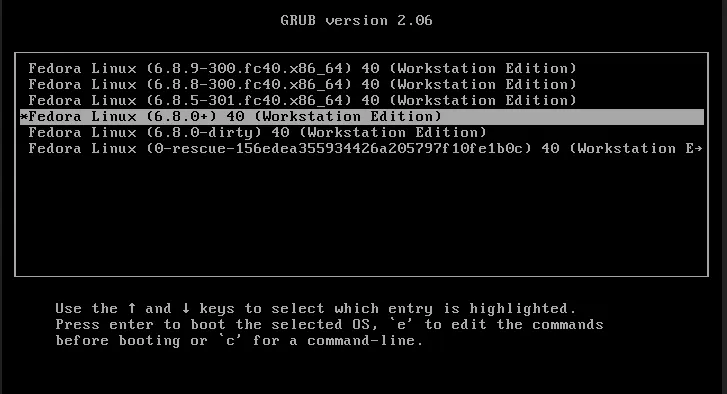
Once booted, let’s write a C program to leverage the syscall
Create a file, maybe “test.c” with the following content
#include <stdio.h>
#include <sys/syscall.h>
#include <unistd.h>
int main(void) {
  printf("%ld\n", syscall(462));
  return 0;
}
Here replace 462 with the number you chose for your syscall in the table.
Compile the program and then run it
make test
chmod +x test
./test
If all goes right, your terminal will print a “0” and the syscall output will be visible in the kernel logs.
Access the logs by dmesg
sudo dmesg | tail
And voila, you should be able to see your syscall message printed there.
Congratulations if you made it 🎉
Please again remember the following points:
- Compiling kernel takes a lot of time
- The newly compiled kernel takes quite a bit of space so please ensure the availability
- Linux kernel moves fast with code changes